Pool Remote
Named colors for your existing AquaConnect lights.
From a hardware panel to named lighting presets.
Before: Hayward AquaConnect
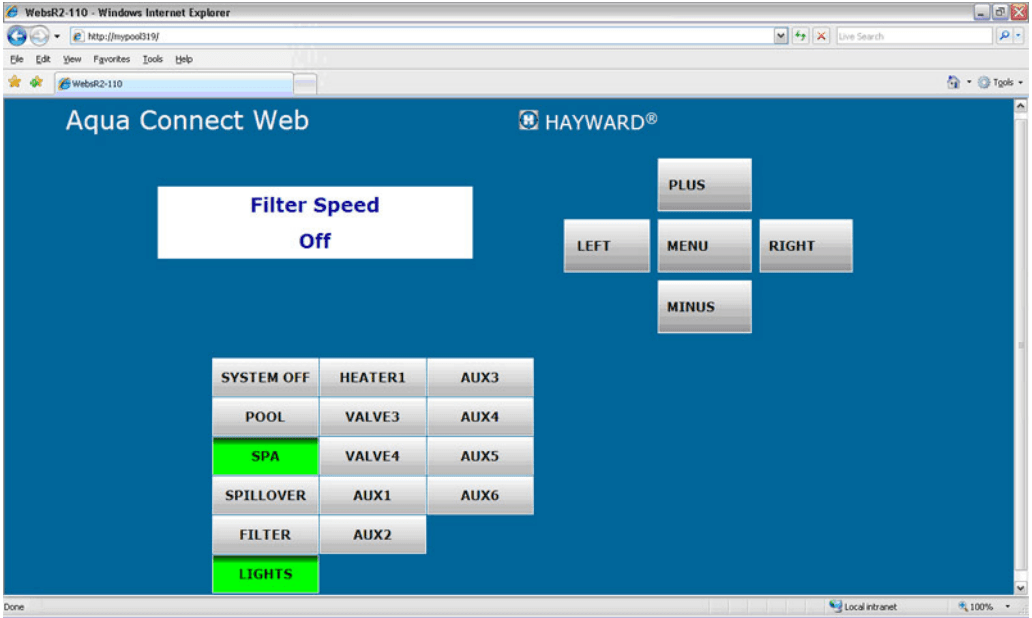
- A screen that mirrors the hardware panel
- Manually timed off/on cycles to change colors
Hayward’s manual, page 9. Reference image, not your pool.
After: Pool Remote
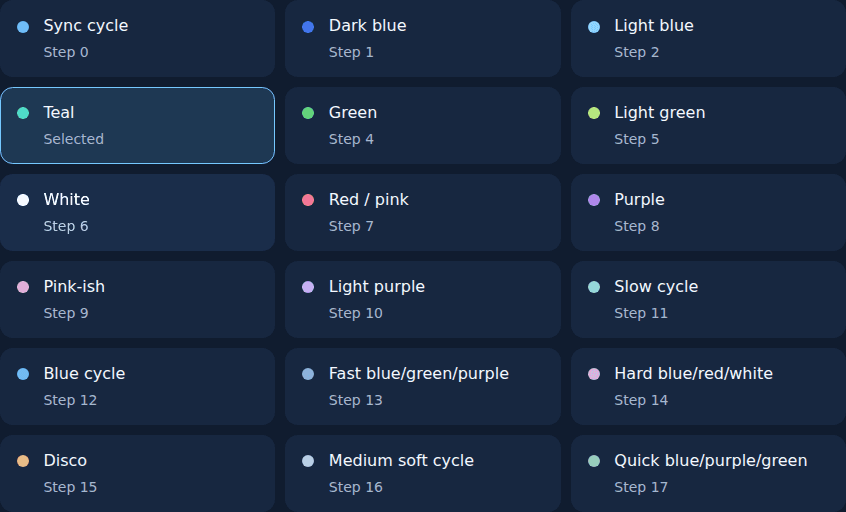
- Choose Teal, Purple, or White by name
- The app runs the reset and off/on sequence
Actual simulator screenshot. Try the working controls below.
Lighting only, not a replacement for every equipment control. Local-gateway access needs no cloud login. Real preset changes can take over a minute.
View the full original screenshot and source
Hayward Aqua Connect Installation Manual, page 9, Figure 11. View Hayward’s original manual. Hayward image reproduced for comparison; this is the manual’s sample, not your pool. The new-interface image is a capture of this app’s simulator.
Controller display · sample readings
Connecting to controller…
Ready. Choose a color or switch the lights off.
Choose a look
Named presets. The off/on sequence is handled for you.
Lights offIllustrative color preview, not a live camera
Cycle tracking and quick advance
Current step unknown. Choose a preset to sync from the start, or mark the color you see on the real light.